




Content ITV PRO
This is Itvedant Content department
React Warm-Up
Business Scenario
During the planning phase of a modern web application, the development team gathered to decide the best frontend technology for their new project.
A junior employee confidently suggested:
Employee:
Sir, we can build this project using HTML, CSS, and JavaScript. Why do we need React?
Manager:
That’s a valid question. For small static websites, those technologies are sufficient. However, our project is dynamic and requires scalability, where React provides clear advantages.
Manager:
Additionally, state management in React allows the UI to automatically update when data changes, reducing manual effort and minimizing errors.
Manager:
Overall, React makes applications scalable, maintainable, and efficient, making it the preferred choice for modern web development.
Manager:
React follows a component-based architecture, allowing us to build reusable UI elements like forms, cards, and navigation. This improves development speed and code maintainability.
Manager:
It also uses a Virtual DOM, which ensures that only the necessary parts of the UI are updated instead of reloading the entire page — resulting in better performance.
Pre-Lab Preparation
What is React?
What is Vite?
Node.js and npm basics
SPA (Single Page Application)
Folder Structure in React
Task 1: Installation of Node.js (Prerequisite)
1
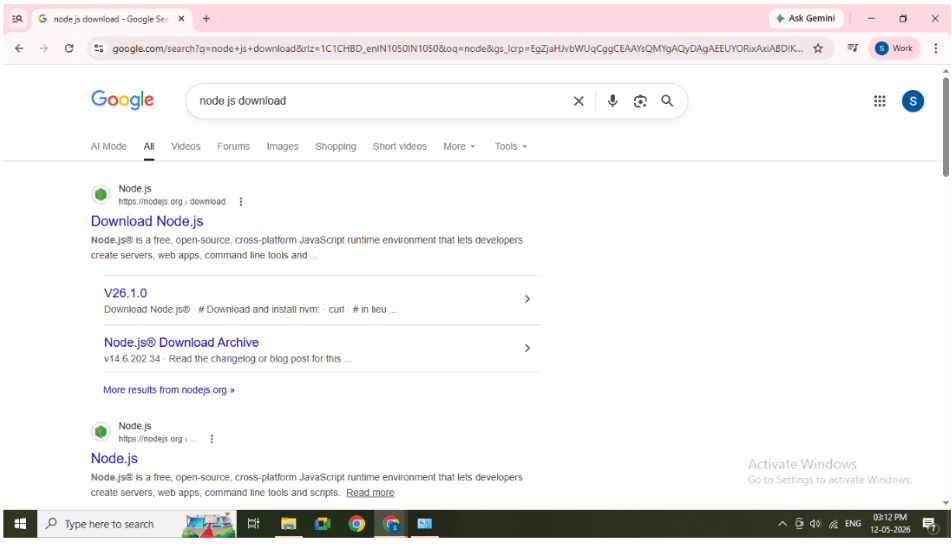
Open any browser (Chrome recommended)
2
Paste this URL:https://nodejs.org
3
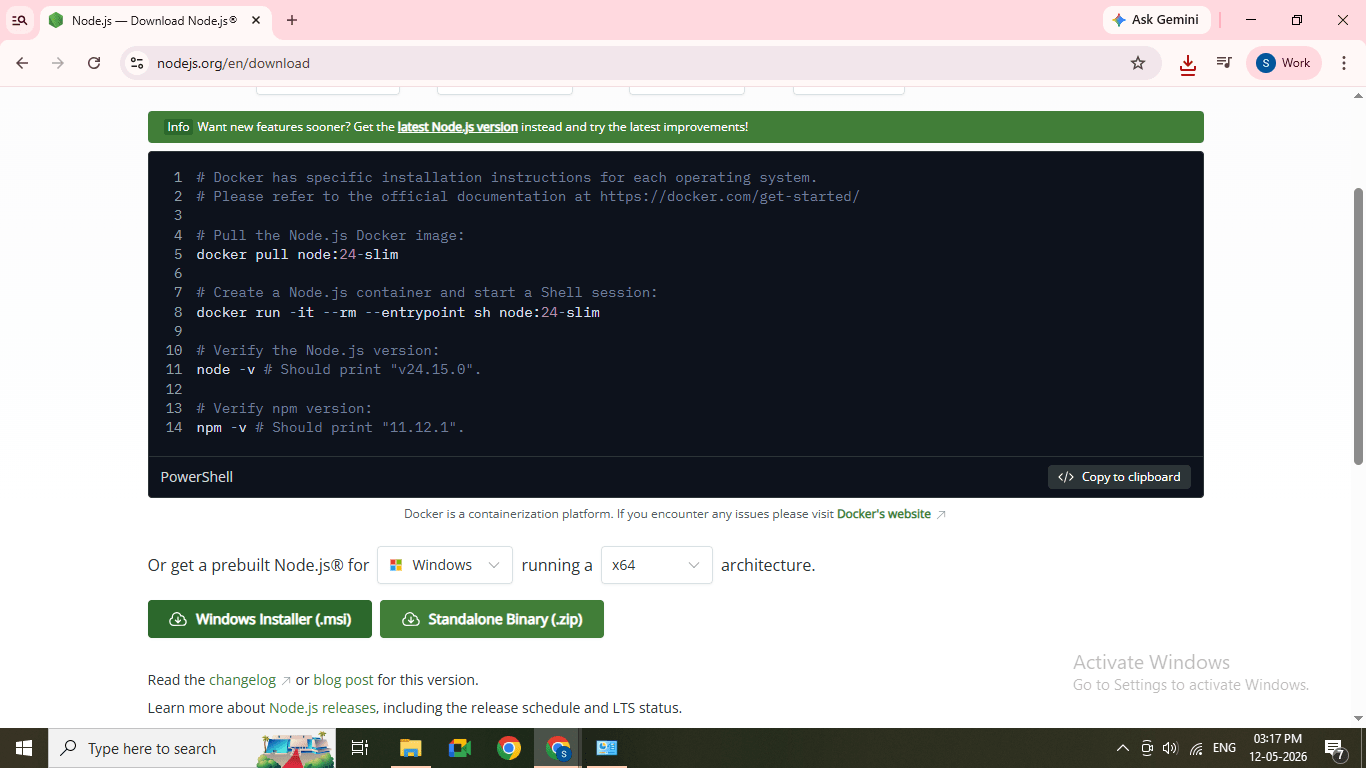
Click on Download (LTS version)
Node.js website with Download button visible
Click on Window Installer (.msi)
4
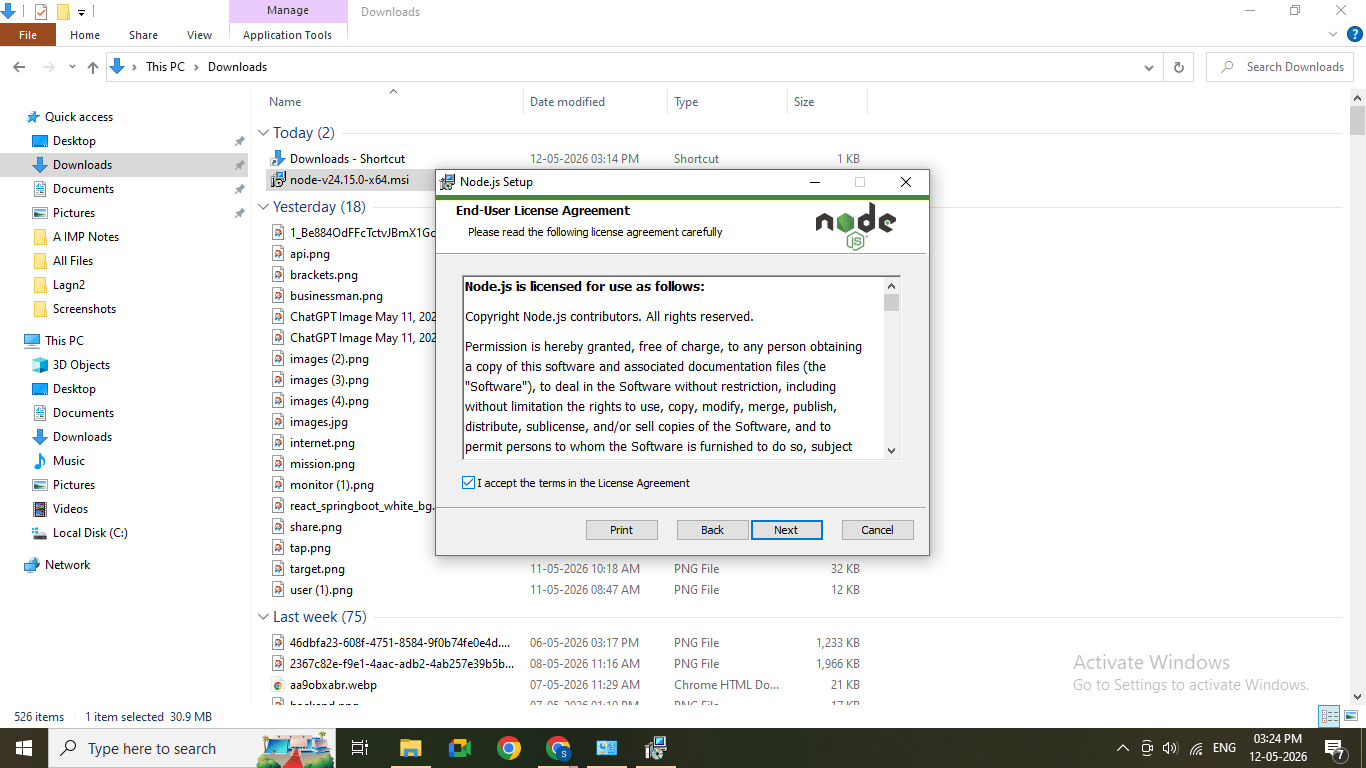
Open downloaded .msi file
5
Click on Next
6
Accept License Agreement
7
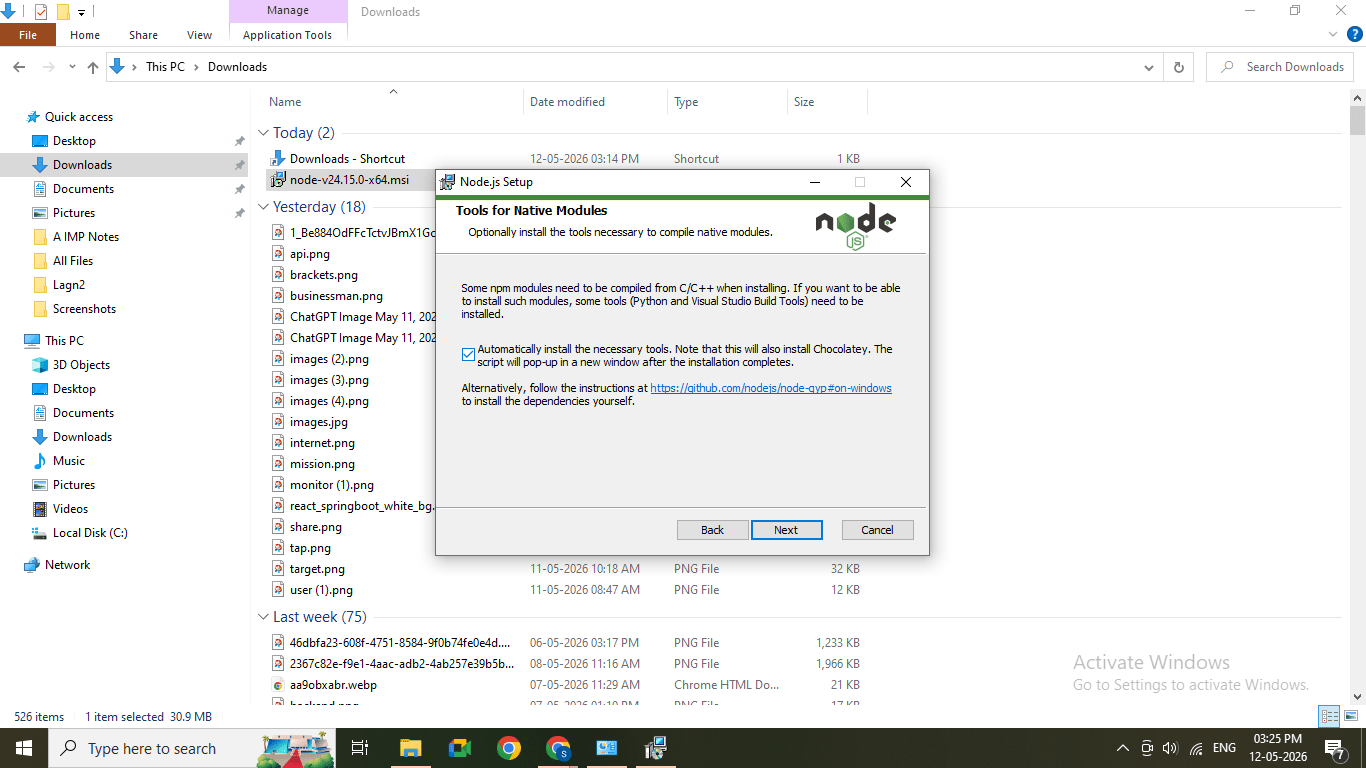
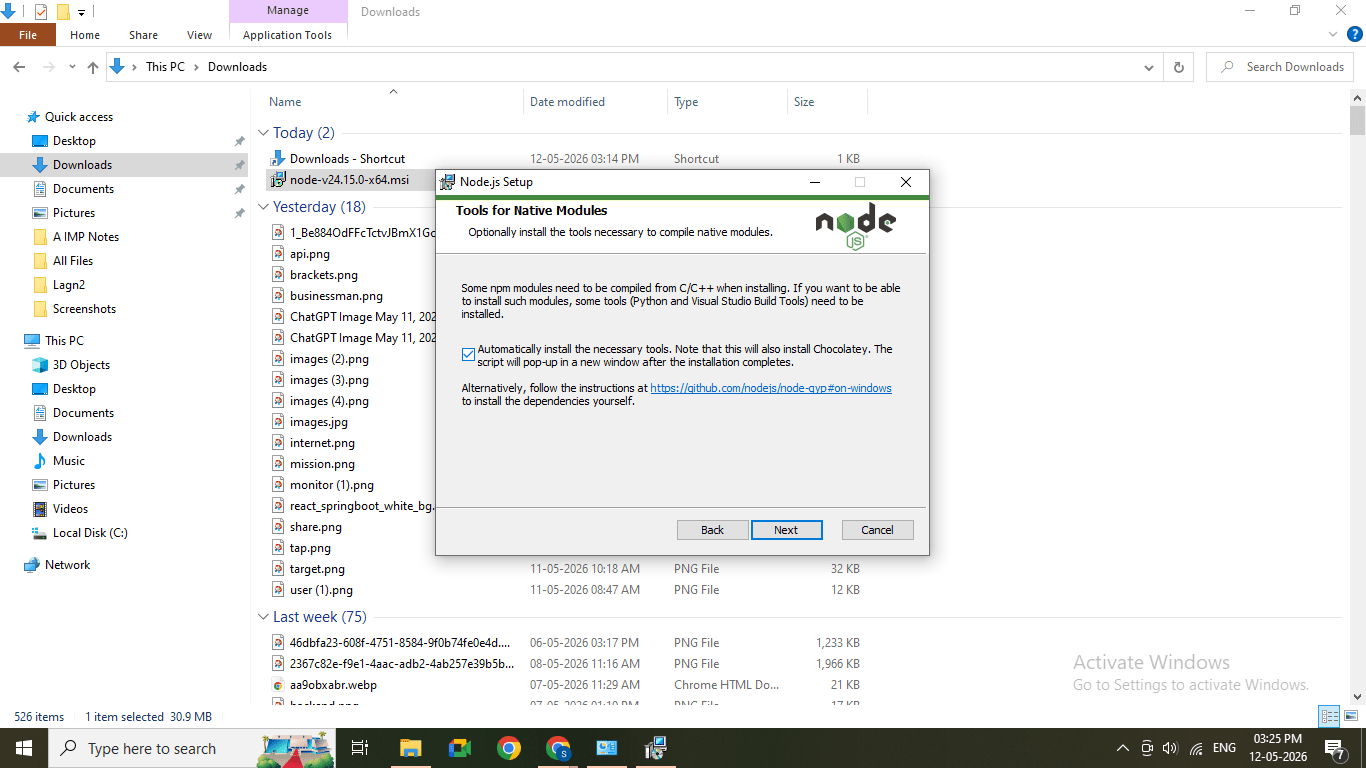
Select a check box of Automatically Installed Necessary Tools.
8
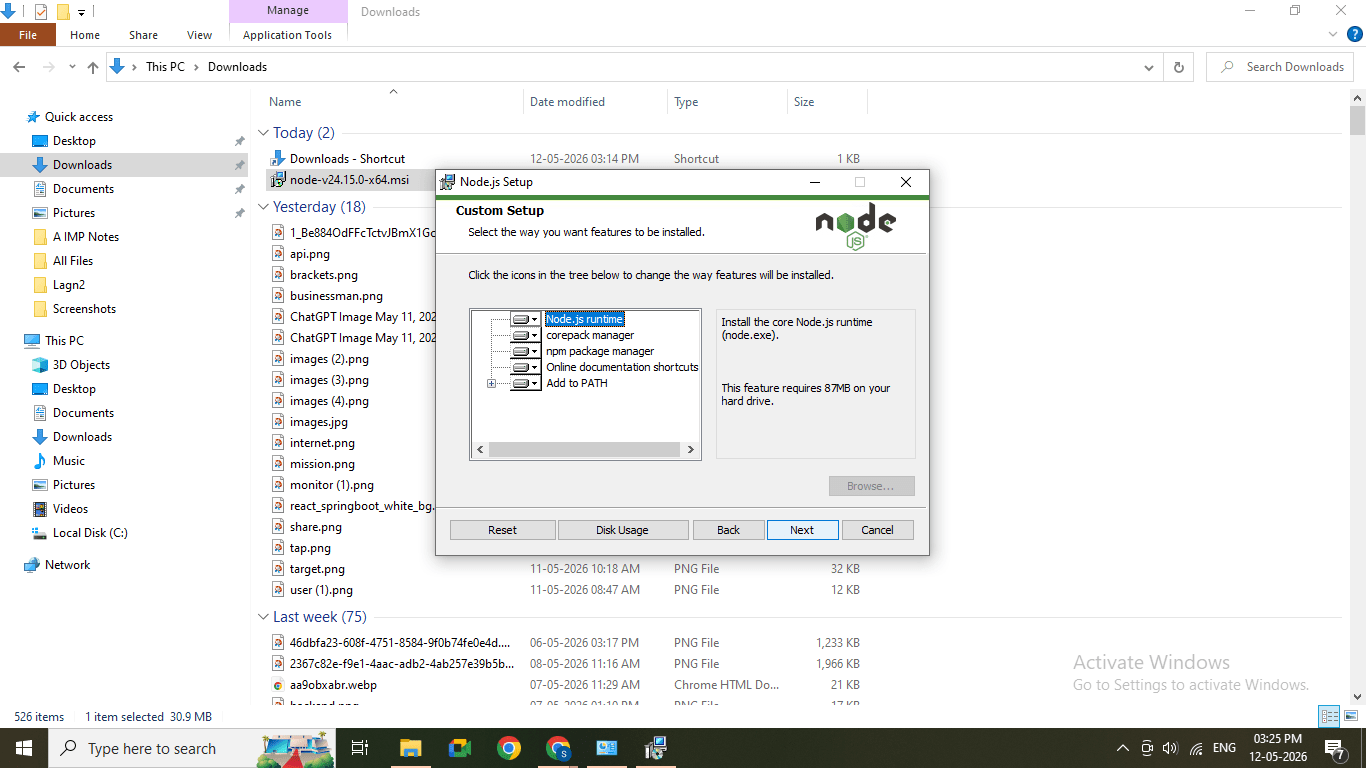
Click Next → Next → Install
9
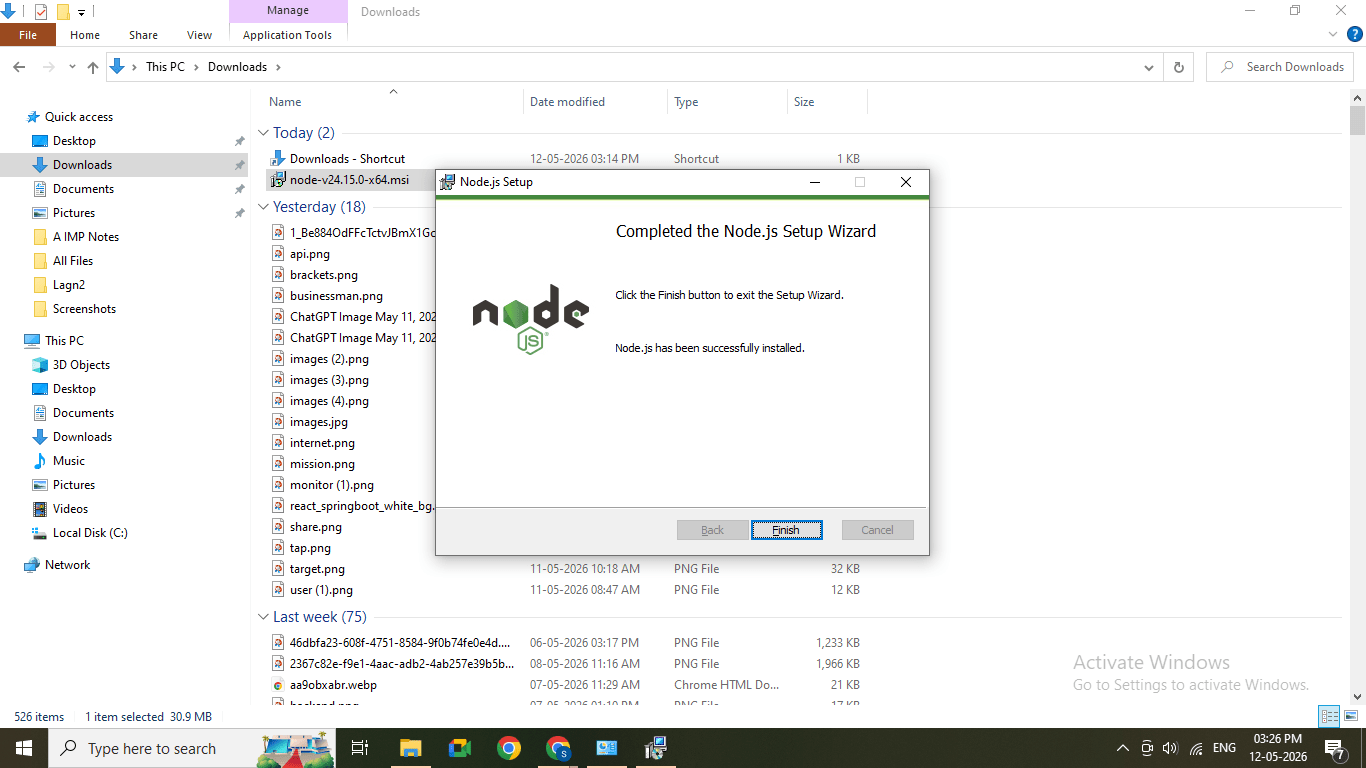
Click Finish
10
Press Any Key and Hit Enter.
11
Wait For 10- 15 Minutes thenPress Enter to Exit
12
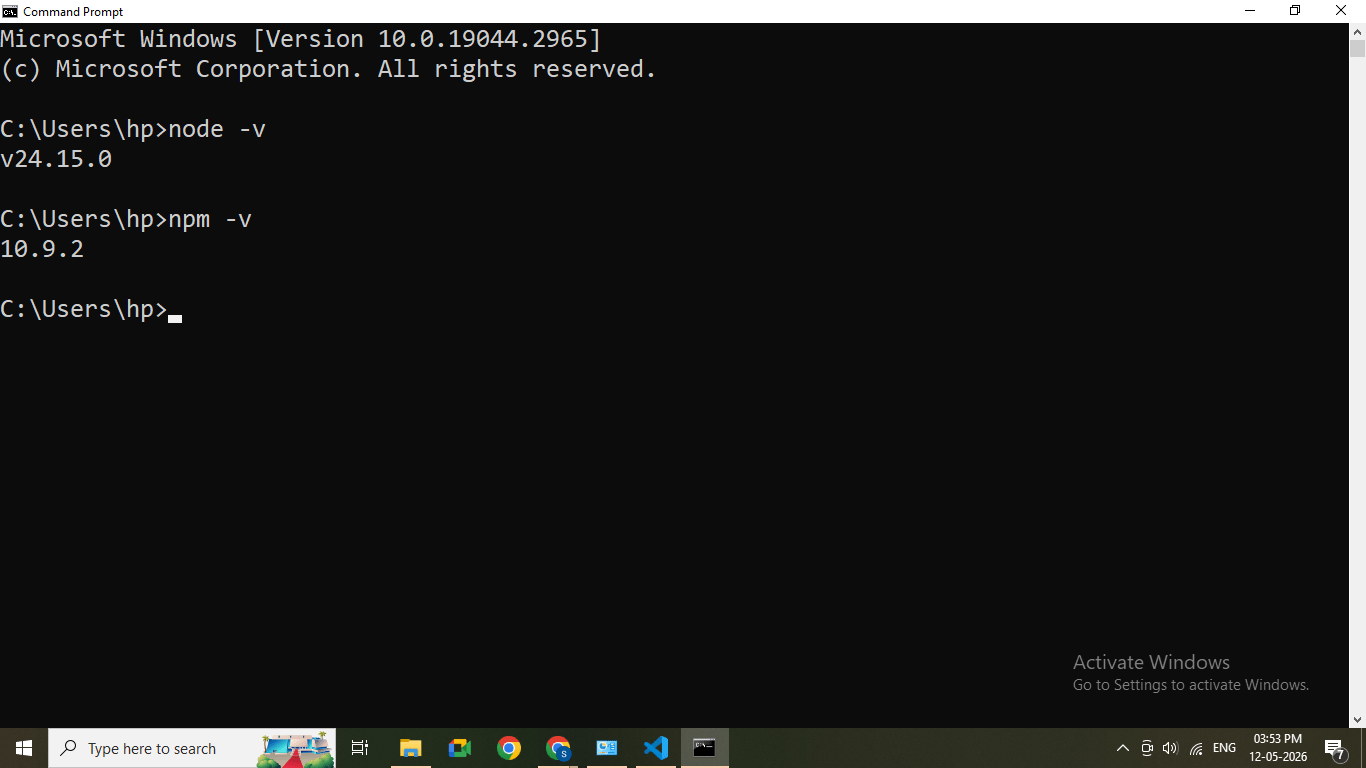
Open Command Prompt and type
node -v
npm -v
Command prompt showing versions
Task 2: Create React App using Vite
1
Open Command Prompt / PowerShell / VS Code Terminal
Terminal opened (blank screen)
2
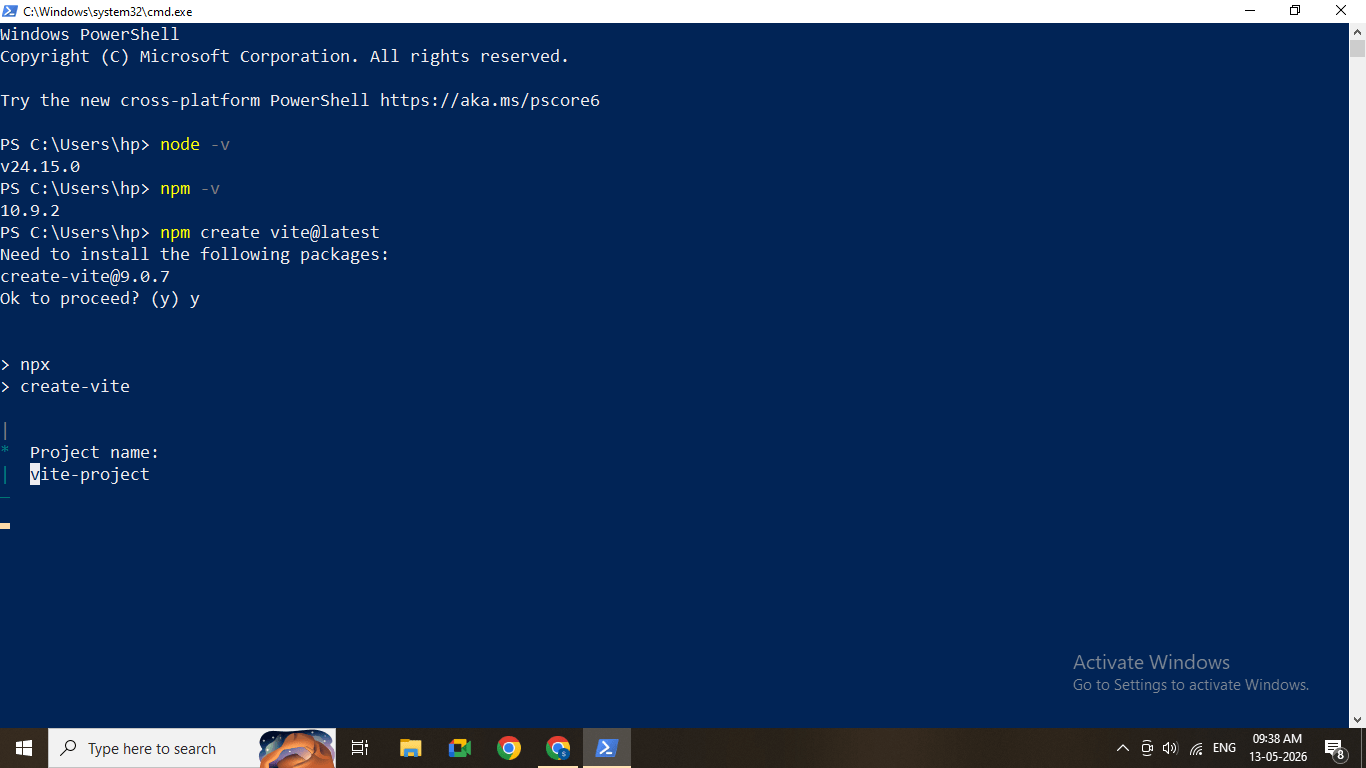
Run the following command:
npm create vite@latestCommand typed in terminal
3
Press Enter
The system will prompt you to enter details.
4
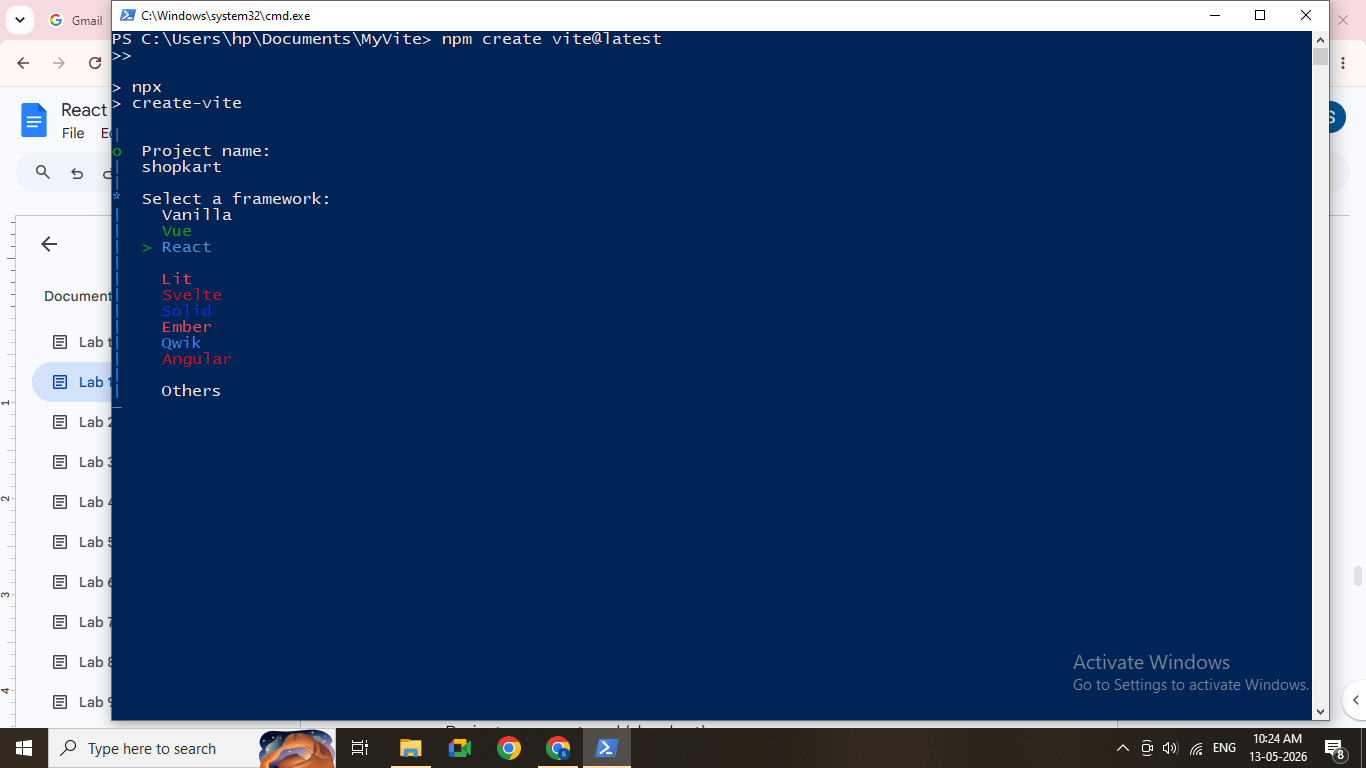
Enter Project Name = shopkart
Press Enter
Project name entered (shopkart)
5
Select Framework
You will see options like:
Vanilla
Vue
React
Others
6
Select Variant
You will see:
TypeScript
JavaScript
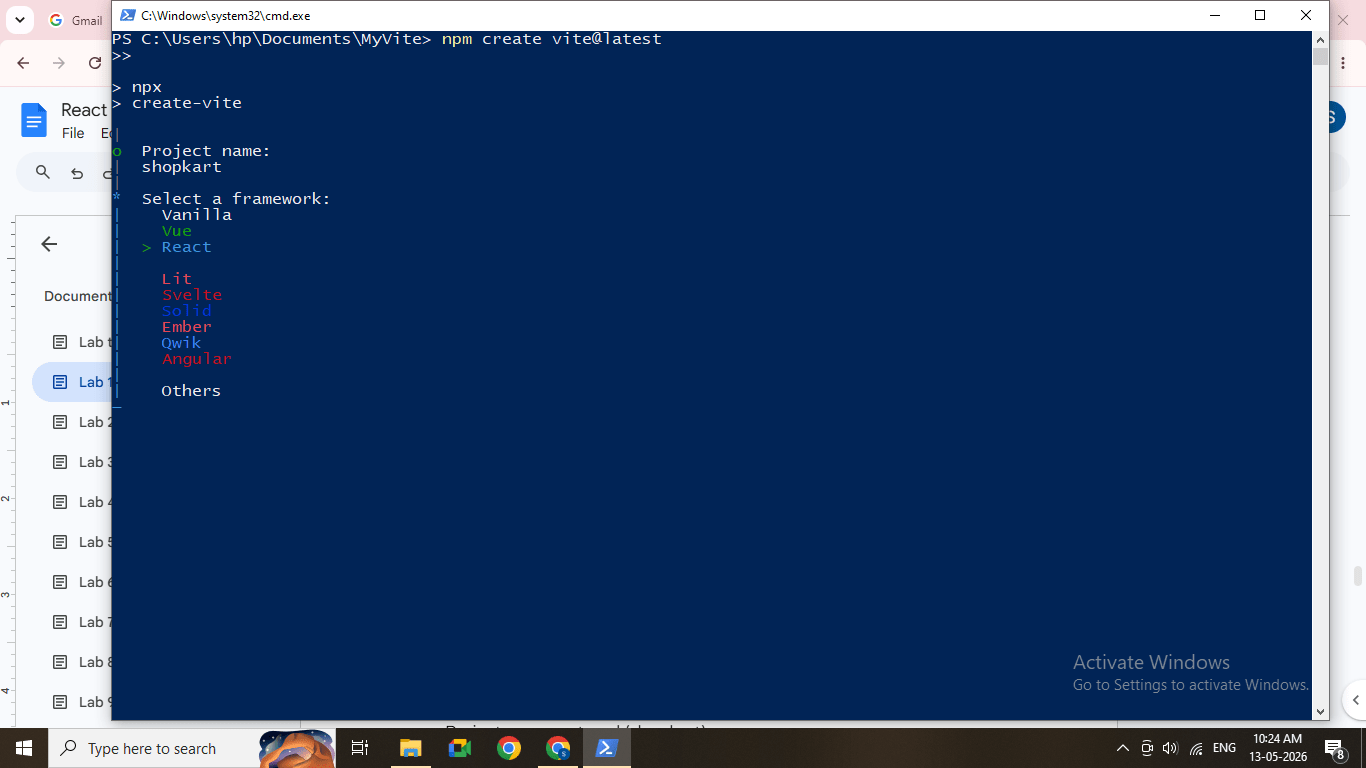
Use arrow keys and select React
Press Enter
React option selected
Select JavaScript
Press Enter
JavaScript selected
7
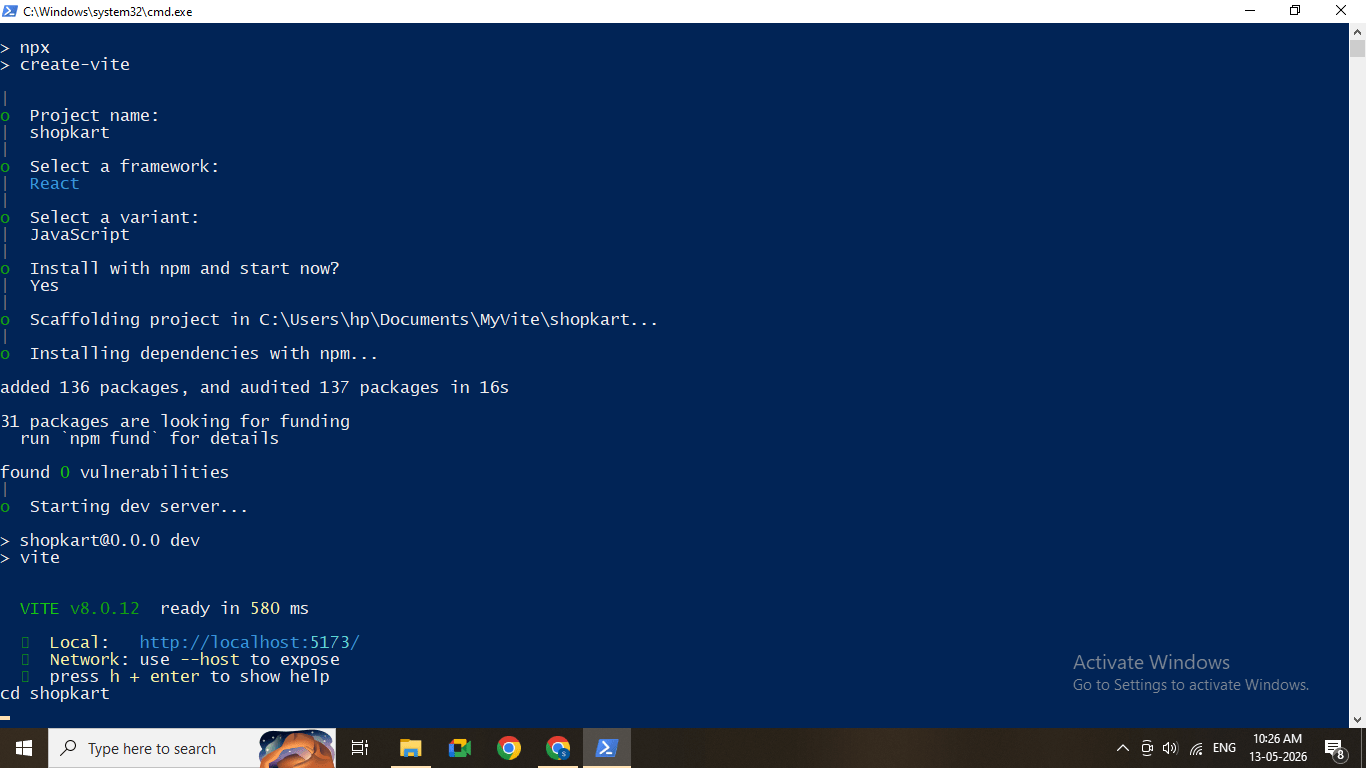
The project setup will start automatically.
Project creation completed in terminal
8
Navigate to the project folder:
cd shopkart
cd command executed
9
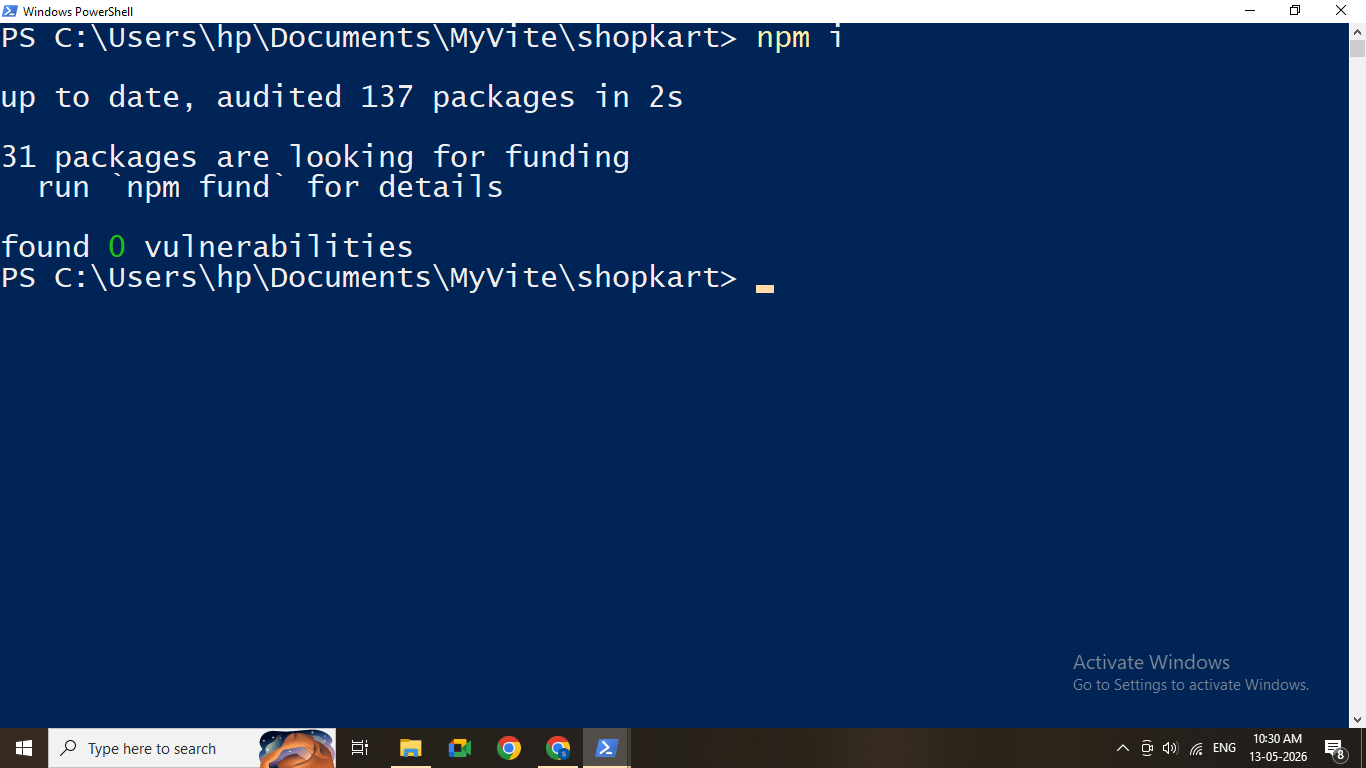
Install project dependencies:
npm install
10
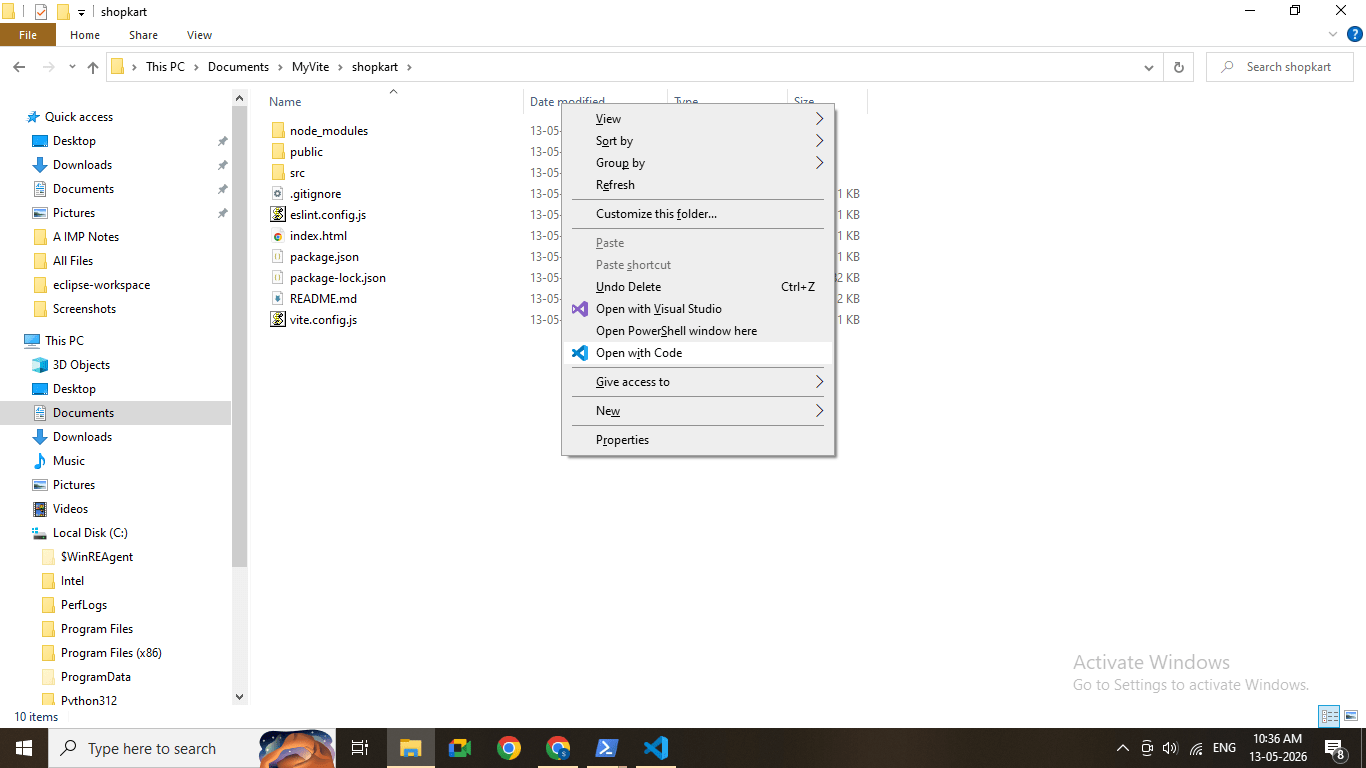
Open Folder where your project was located
Right click - Open with Vs code
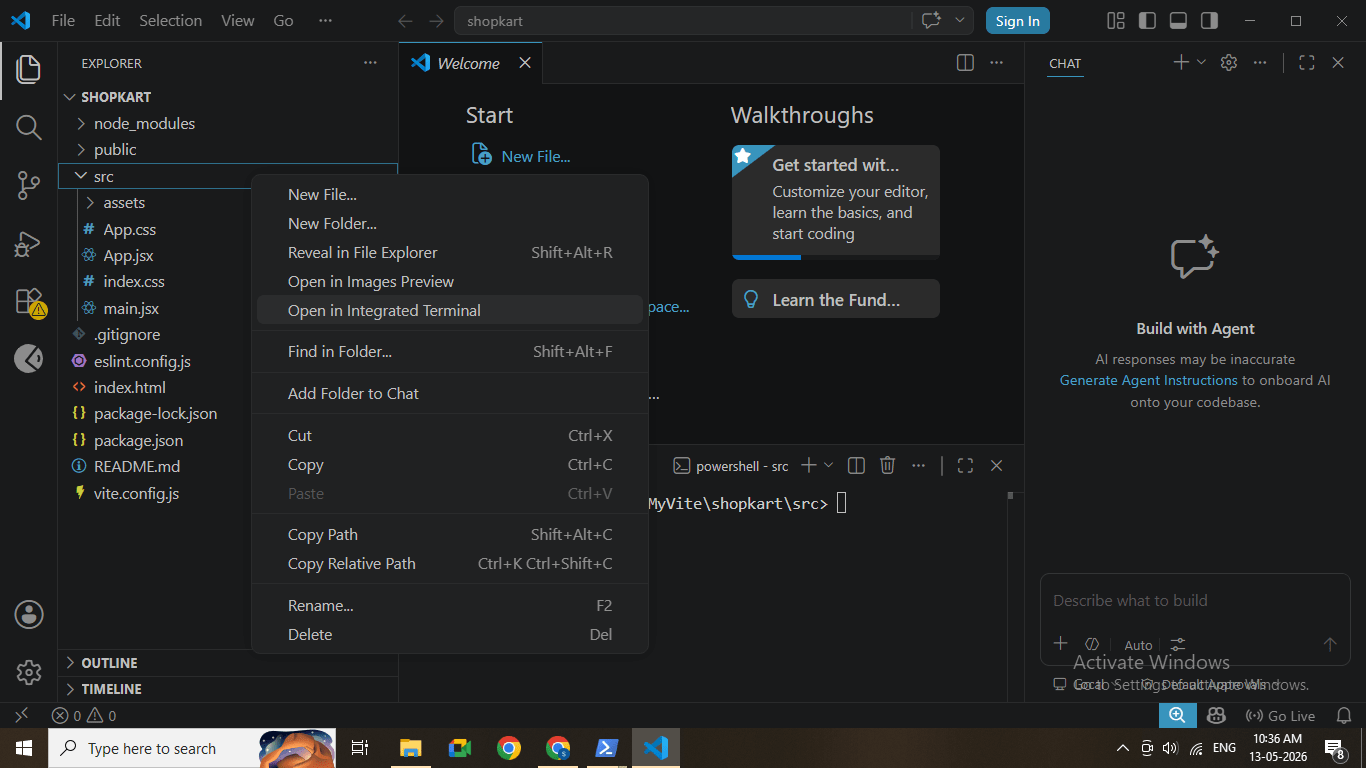
Right click on src - Open Integrated Terminal
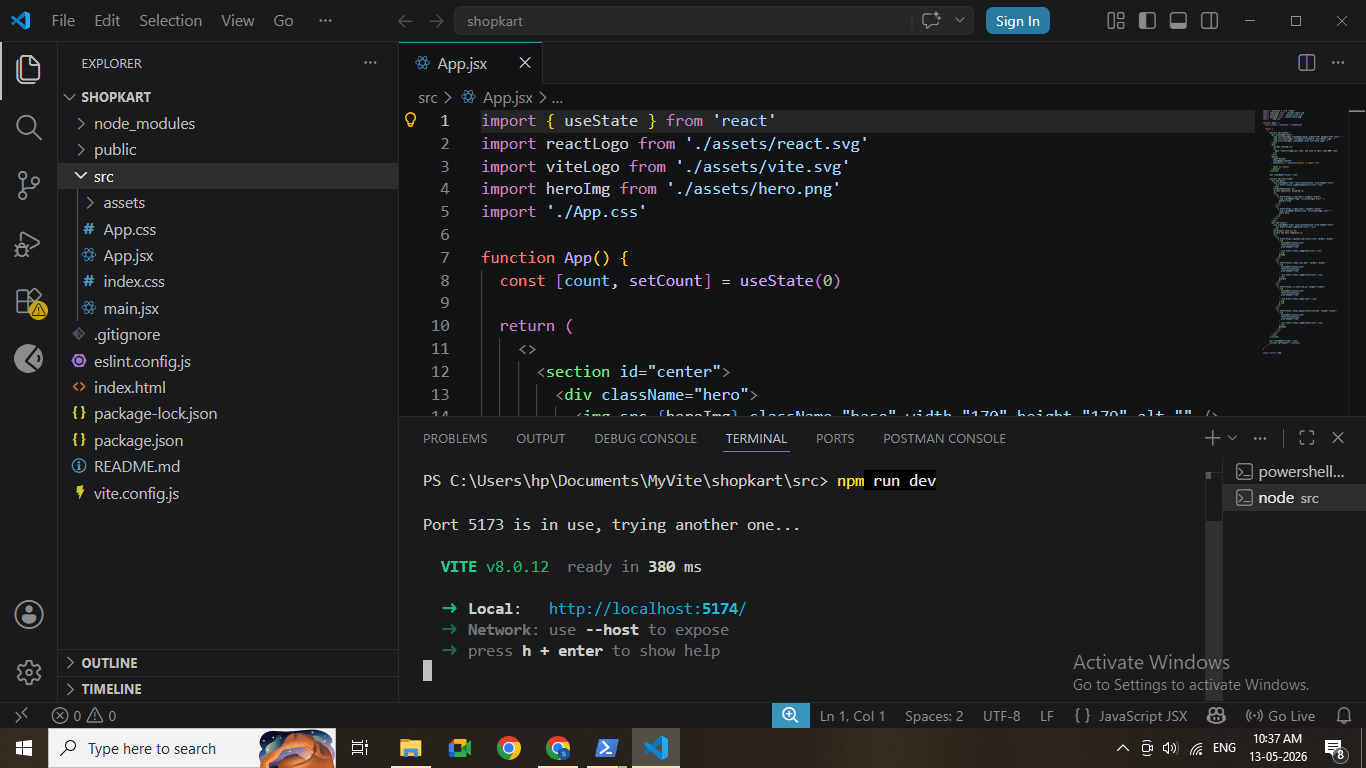
Run the development server:
npm run dev
Server started with localhost URL
11
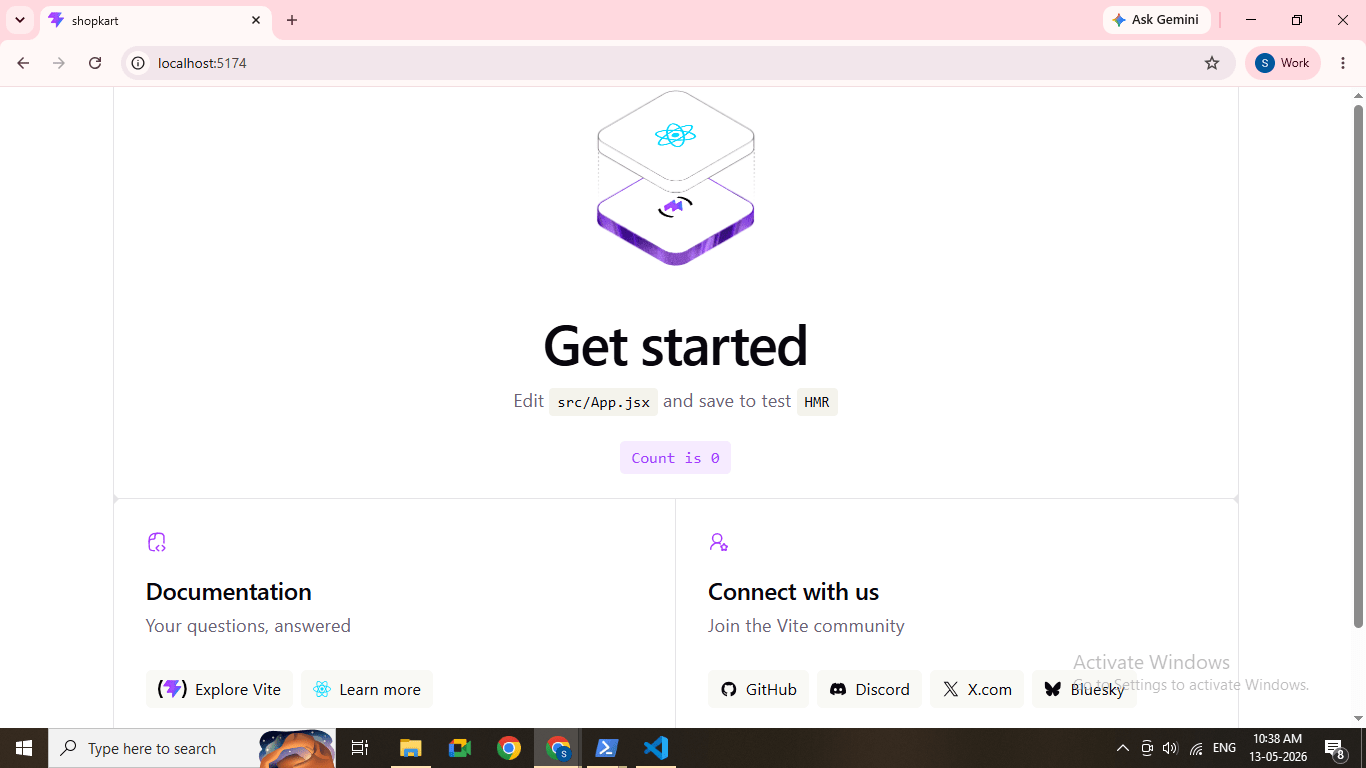
Open your browser and paste:
http://localhost:5173
Default React + Vite application running
12
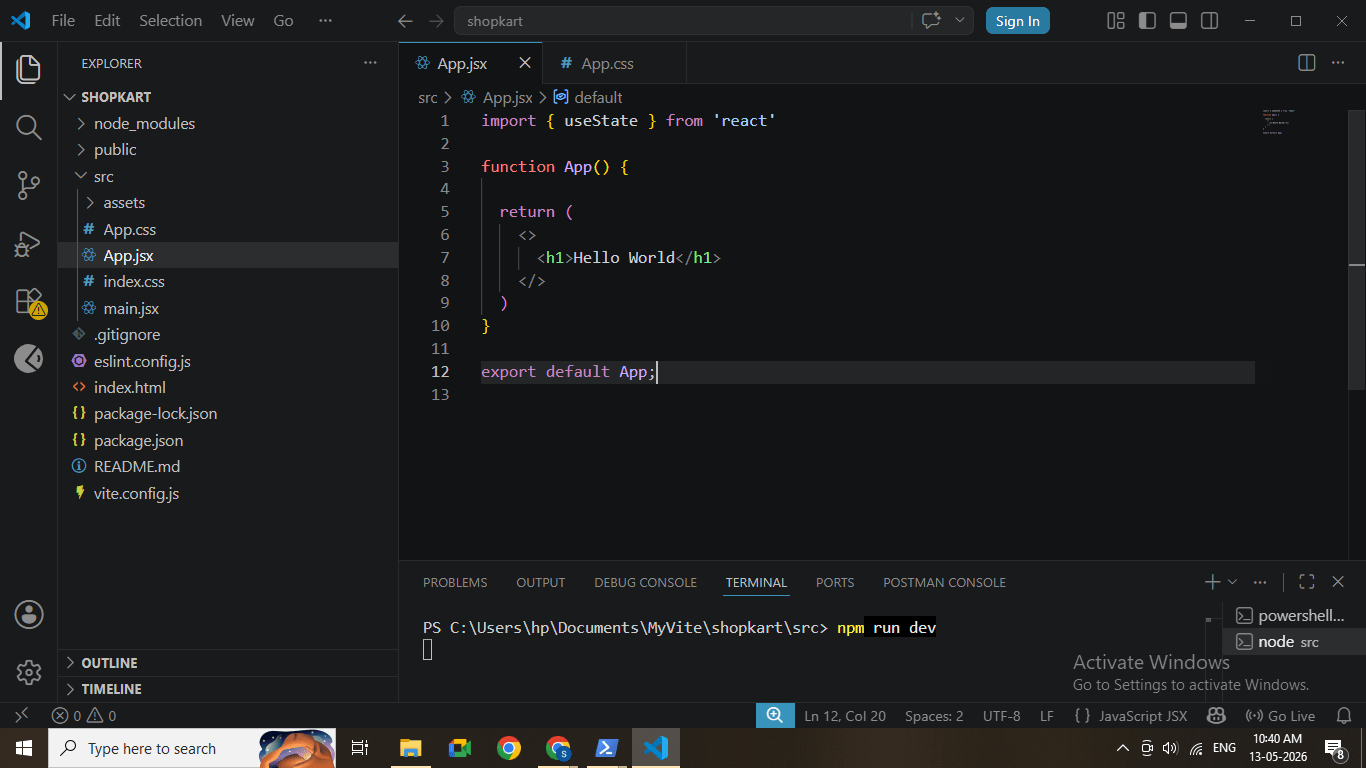
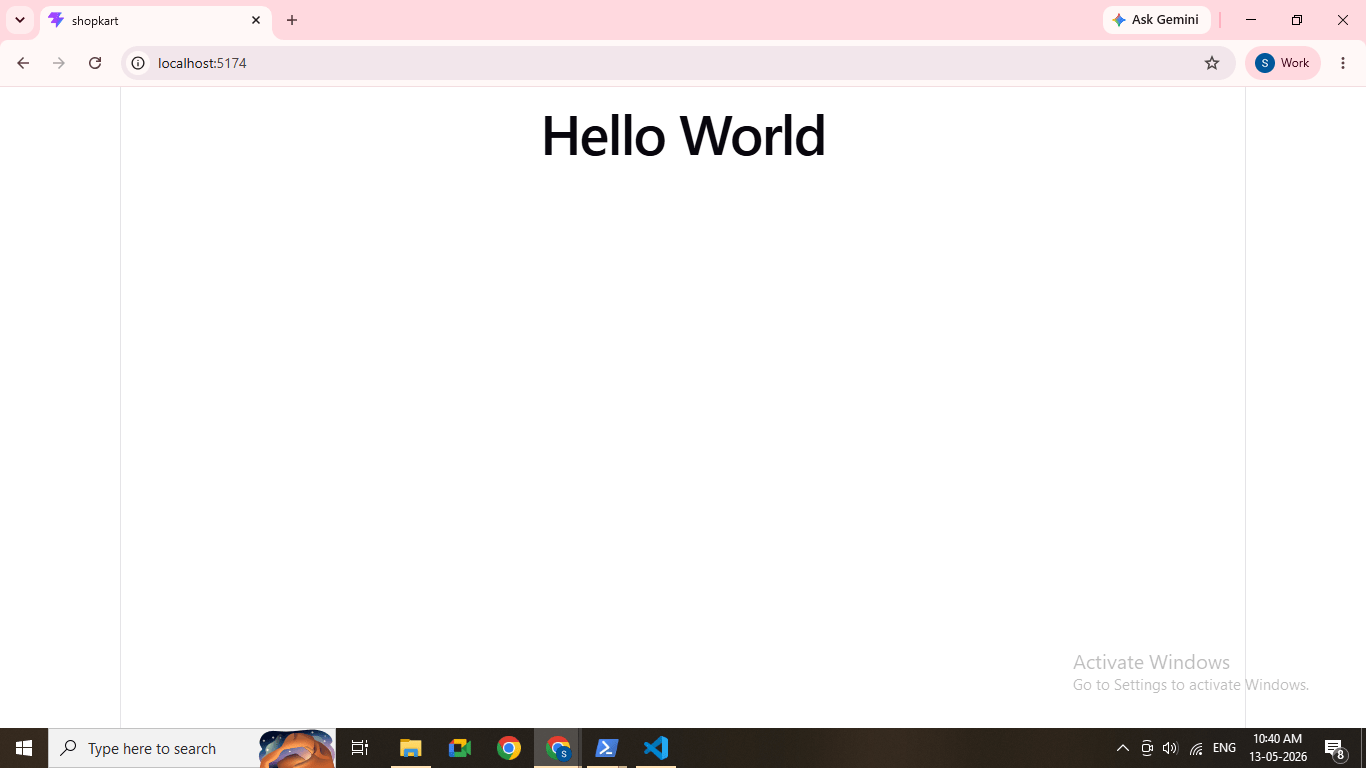
Remove all code in App.jsx
Print Hello world in Functional Component
Check Browser again
Great job!
Created a React project using Vite
Selected React framework and JavaScript variant
Installed dependencies using npm
Started the development server
Successfully viewed the application in the browser
Checkpoint
Next-Lab Preparation
React Folder Structure
JSX Basics
Components in React
Props and State
By Content ITV